
티스토리 뷰
728x90
1. 다운로드 사이트 접속
https://nodejs.org/en/download/package-manager
Node.js — Download Node.js®
Node.js® is a JavaScript runtime built on Chrome's V8 JavaScript engine.
nodejs.org
2. PowerShell 에서 fnm 다운로드
fnm을 설치하면 fnm 명령어로 빠르게 node.js를 다운로드 받을 수 있다.
# installs fnm (Fast Node Manager)
winget install Schniz.fnm
3. PowerShell 프로필 변경
~\Documents\WindowsPowerShell\Microsoft.PowerShell_profile.ps1
** 만약 해당 프로필 파일이 없을 경우 아래 명령어로 생성해주기
# 프로필 파일 생성 여부 확인
test-path $profile

# False일 경우 파일 생성
new-item -path $profile -itemtype file -force
해당 파일에 내용을 추가해주자.
# 메모장으로 수정하기
notepad $profile

# 아래 내용 입력!
fnm env --use-on-cd | Out-String | Invoke-Expression
4. Node.js 다운로드 및 버전 확인
# download and install Node.js
fnm use --install-if-missing 22

# verifies the right Node.js version is in the environment
node -v # should print `v22.11.0`
npm -v # should print `10.9.0`
노드 버전 확인 시 성공적으로 설치된 것을 확인할 수 있다.

5. vscode에서 React 파일 실행해보기
새로운 프로젝트 폴더를 생성하고, 해당 경로에서 터미널을 오픈한다.
# npm create-react-app [프로젝트명]
npx create-react-app react-demo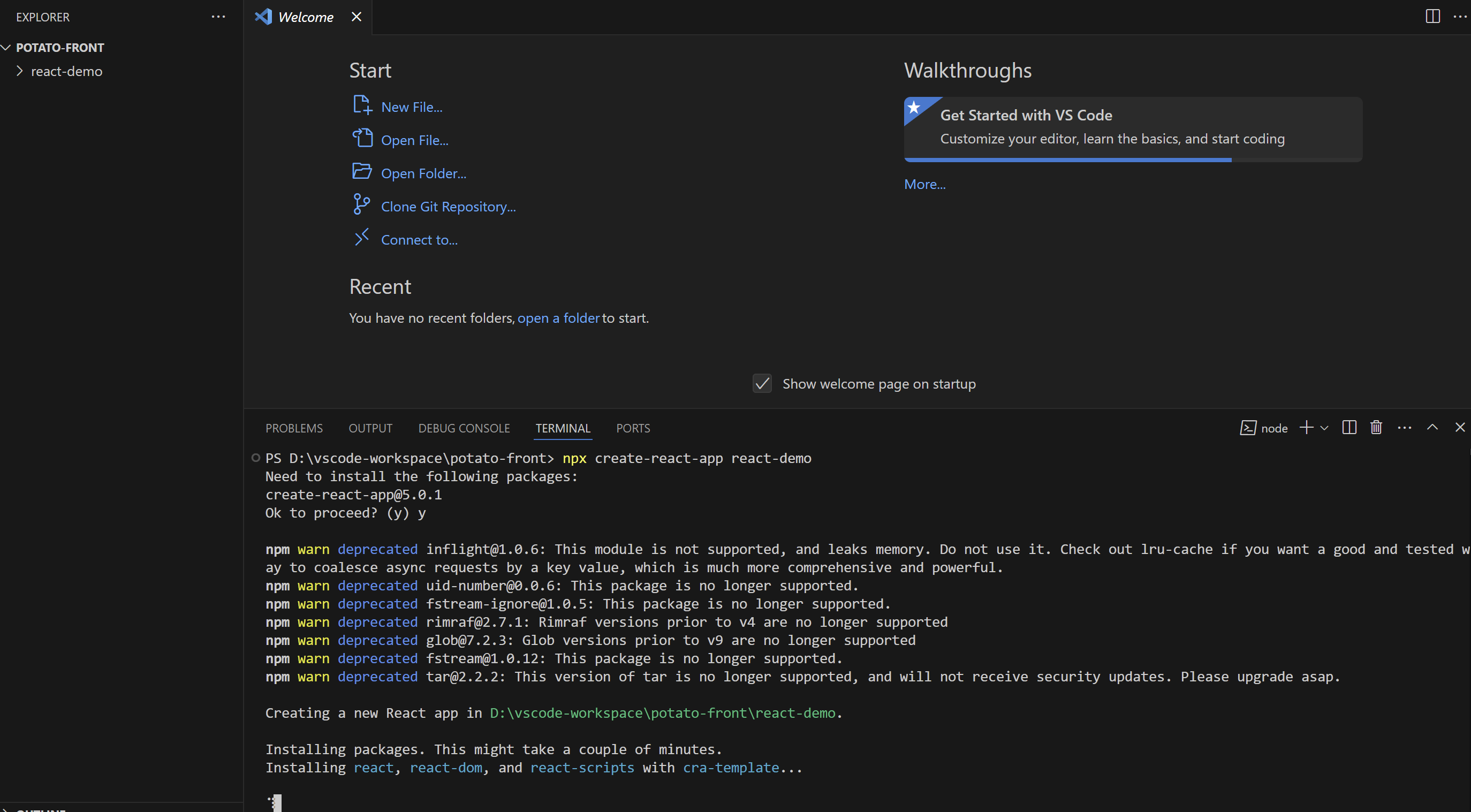
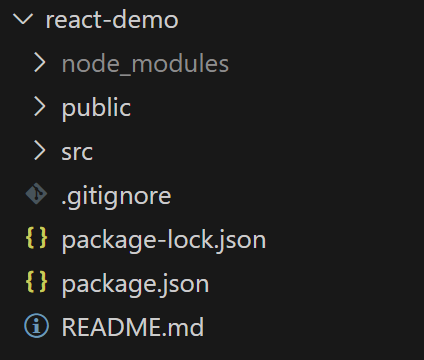
왼쪽 상단에 프로젝트가 생성된다. 이제 해당 경로 안에서 npm start 명령어로 실행시켜보자.
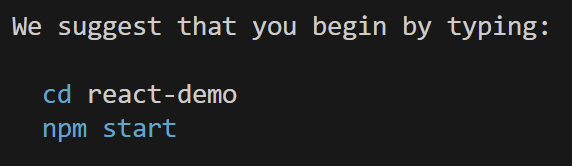
npm start
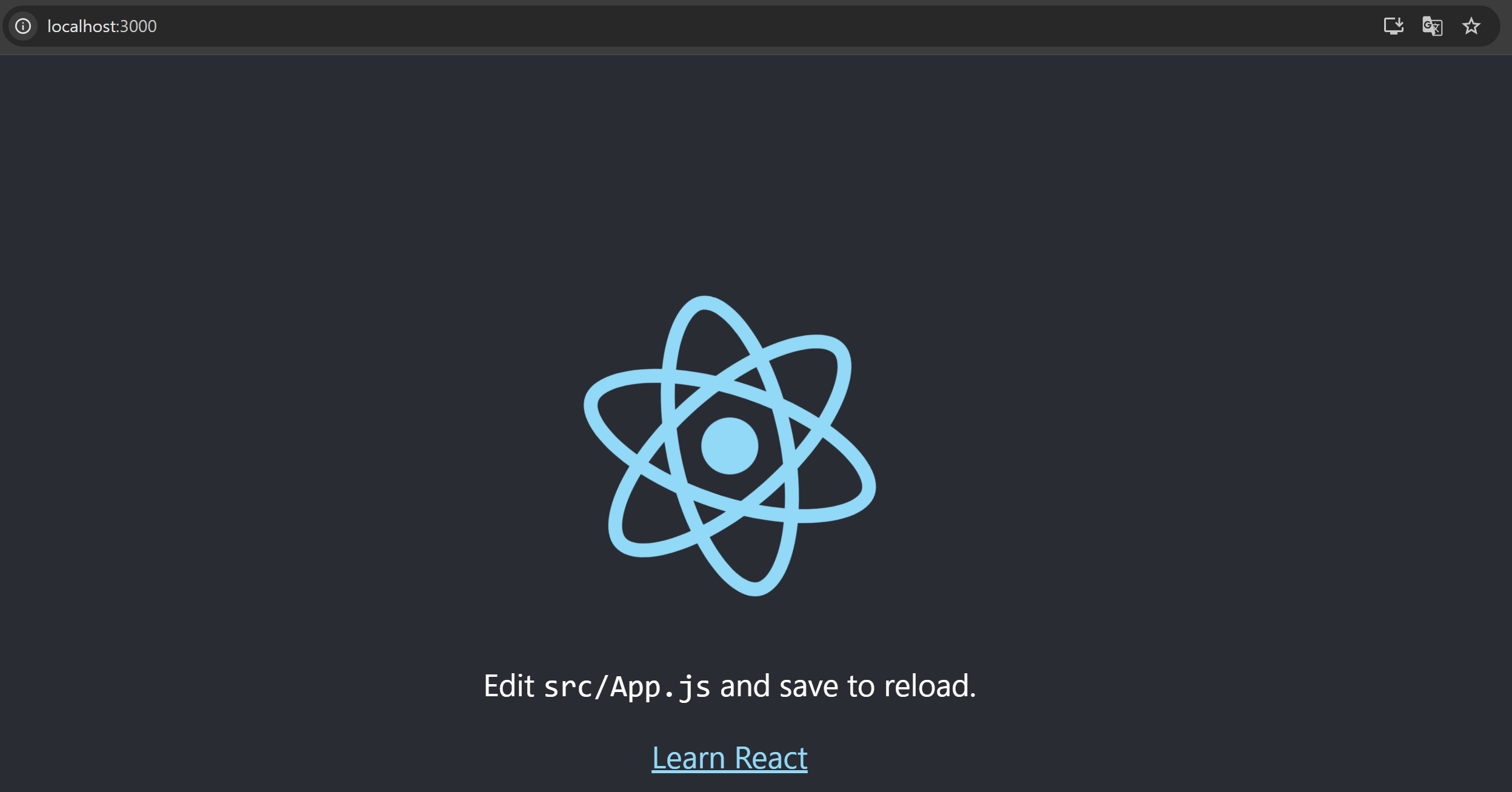
localhost:3000 으로 진입해보니 성공적으로 실행된다.
728x90
'Javascript' 카테고리의 다른 글
| [vscode] 윈도우 Visual Studio Code 설치하기 (0) | 2024.10.27 |
|---|---|
| ax5ui-grid 사용해보기 (0) | 2022.08.21 |